How it works
From sign-up to your first live view
Setting up takes a few minutes per computer. Nobody is recorded until they have accepted the notice on their own computer.
You create your office
Sign up with your email, confirm it from the link we send, and name your office. Your time zone and default work hours can be changed any time in Settings.
You add a person
Choose “Add a person”, enter their name and role. LiveDesk shows a one-time setup code (valid for 24 hours, for one person) and an install link you can share on WhatsApp or copy.
They install LiveDesk
On their work computer (Windows 10/11 64-bit or macOS 13+), they open the download page, install LiveDesk and enter the setup code. On a Mac they also allow Screen Recording in System Settings.
They read and accept the notice
Before anything is recorded, LiveDesk shows the recording notice: what is captured, when, who can view it and how long it is kept. Recording starts only after they accept it.
You approve them
The new computer appears under “Recently joined” on your dashboard. Approve to keep it, or remove it.
Watch live or look back
Press Watch to see their screen live (the notice they accepted says this can happen at any time; you can turn on an alert each time), or open Recordings and Screenshots for any hour in the last 15 days.
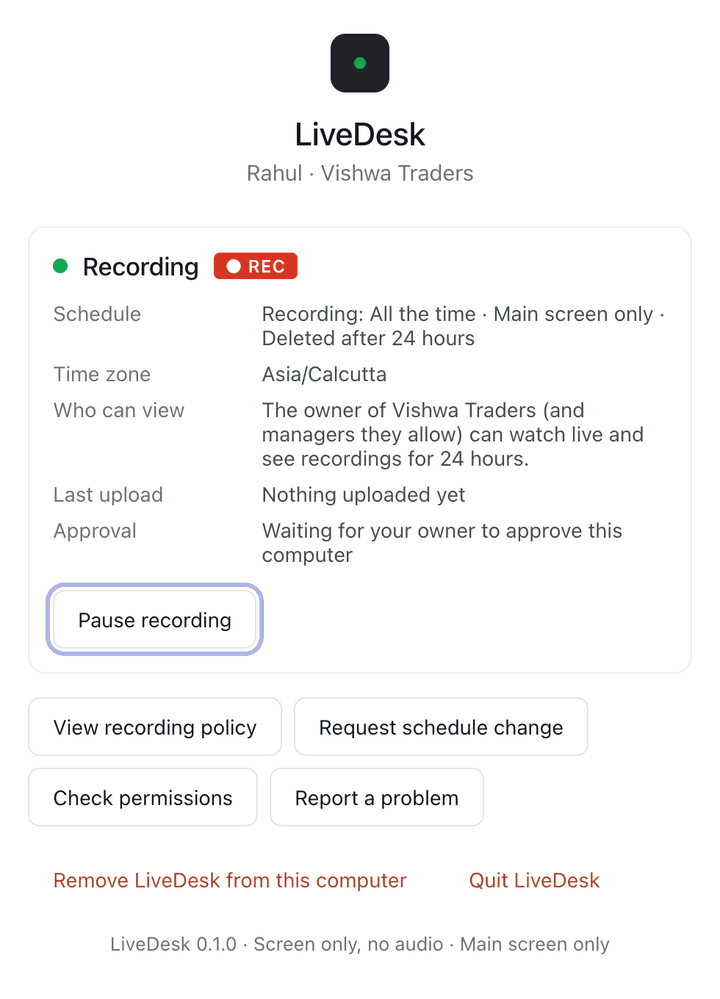
What the employee sees
only during the recording hours shown on this screen and approved by your office. Recording stops when the computer is locked, asleep, paused, or outside those hours.
while recording is on, your manager may watch your screen live at any time. There is no separate alert each time this happens. The LiveDesk icon shows whenever recording is on.
the LiveDesk icon always shows when recording is on. You can pause recording when your office allows it — please pause before entering passwords, banking or personal information, because LiveDesk cannot automatically hide sensitive content on screen. Changing your name, role or hours needs a one-time code from your manager.
Quoted from the employee notice.
Set up your office in a few minutes
Create your account, add your first person, and share the install link.